
Multi-factor authentication (MFA) adds an authenticator-app code to password sign-in. Northstar supports one authenticator enrollment per account and supplies ten single-use recovery codes.
Understand Who Must Enroll
| User | Local MFA for password sign-in |
|---|---|
| Owner or Administrator | Always required, regardless of organization policy. |
| Member | Optional unless Require MFA for password sign-in is on. |
| User signing in with SSO | Provider MFA applies. Northstar does not add a local challenge. |
Require MFA for Members
Only an Owner can change this policy. Turning it on ends password-authenticated sessions. Users without an enrollment must set up MFA at their next password sign-in. Single sign-on (SSO) sessions are unaffected.
- Open Settings > Authentication > Multi-factor authentication.
- Turn on Require MFA for password sign-in.
- Select Save changes.
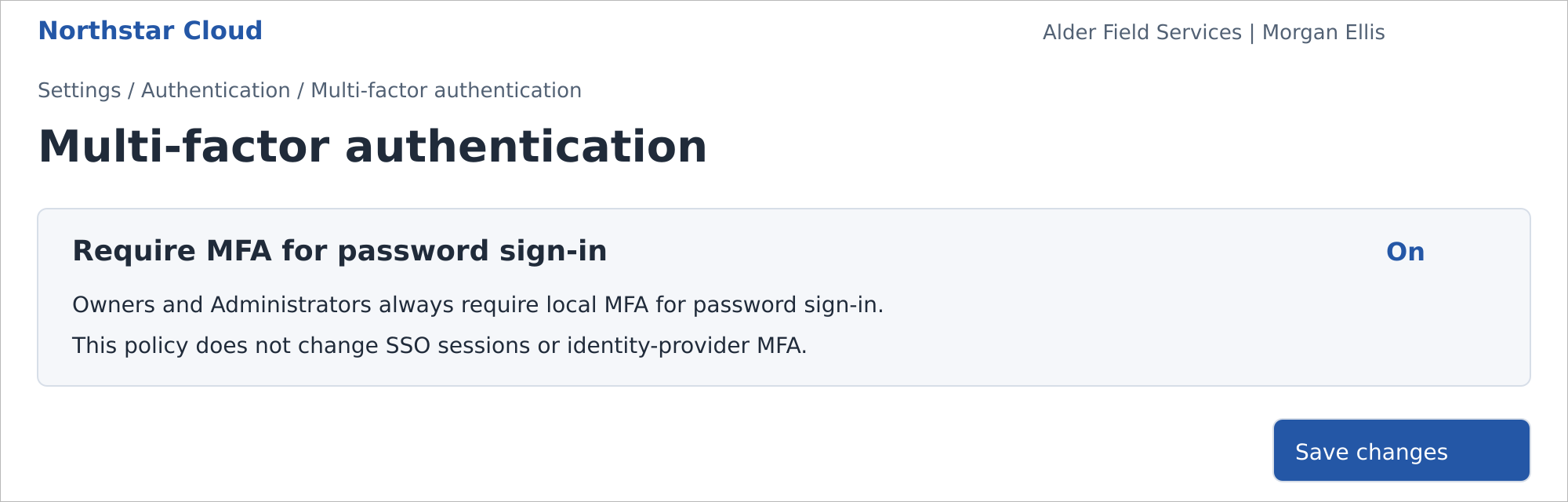
Organization MFA policy with the Member requirement turned on. Northstar Cloud 1.0 — fictional product mockup.
To make MFA optional for Members again, turn off the same setting and select Save changes. Owners and Administrators still require local MFA. Owners retain password sign-in with MFA when SSO is required.
Set Up Your Authenticator
Have an authenticator app available. If MFA is mandatory, Northstar prompts you to enroll before completing password sign-in. For optional enrollment, use your profile settings.
- Open the profile menu, select My profile, and open Security.
- Select Set up MFA.
- Scan the displayed QR code with your authenticator app, or enter the setup key into the app.
- Enter the app’s six-digit Authentication code, then select Verify code.
- Save the ten recovery codes somewhere you can access if the authenticator is unavailable.
- Select I have saved my recovery codes, then select Finish setup.
The Security page shows that MFA is enabled. At password sign-in, use the code from the enrolled app. Each recovery code can be used once in place of an authenticator code.
Protect Setup Information
The setup key and recovery codes provide access to your account. Do not include them in screenshots or messages. This sample intentionally does not display a scannable QR code, setup key, or usable recovery code.
If Setup Does Not Complete
Check that you entered the six-digit code for the Northstar enrollment you just added. You must verify a code and acknowledge that you saved the recovery codes before enrollment is complete.
Disable Optional MFA
This option is available only to Members when organization policy does not require MFA. Owners and Administrators cannot disable local MFA.
- Open My profile > Security and select Disable MFA.
- Enter your Password and an Authentication code, or select Use a recovery code and enter an unused code.
- Confirm by selecting Disable MFA.
Recover Access
If your authenticator is unavailable, select Use a recovery code at the MFA prompt and enter an unused recovery code. A password reset does not remove MFA.
If you have no recovery code, ask an authorized administrator to reset your local MFA. An Owner can reset another user’s MFA; an Administrator can reset MFA only for another Member. A reset removes the enrollment and recovery codes and ends existing sessions.
If MFA is still mandatory, enroll again at your next password sign-in. A sole Owner without an authenticator or recovery code must contact Northstar support. This sample does not define support identity verification or promise an automatic bypass.
Related guides: Manage Users; Configure SSO; Troubleshoot Sign-In Problems.