Review your organization’s name before inviting colleagues. The organization is provisioned in advance; this procedure does not create a new organization or account.
Before You Begin
Sign in as an active Owner. Your initial Owner account already has a password and multi-factor authentication (MFA) configured. Administrators and Members cannot change organization settings.
Review the Organization Details
- Open Settings > Organization.
- Check Organization ID to confirm the organization you are administering. The ID is read-only.
- If needed, update Organization name. Enter 2–80 characters; surrounding spaces are ignored.
- Select Save changes.
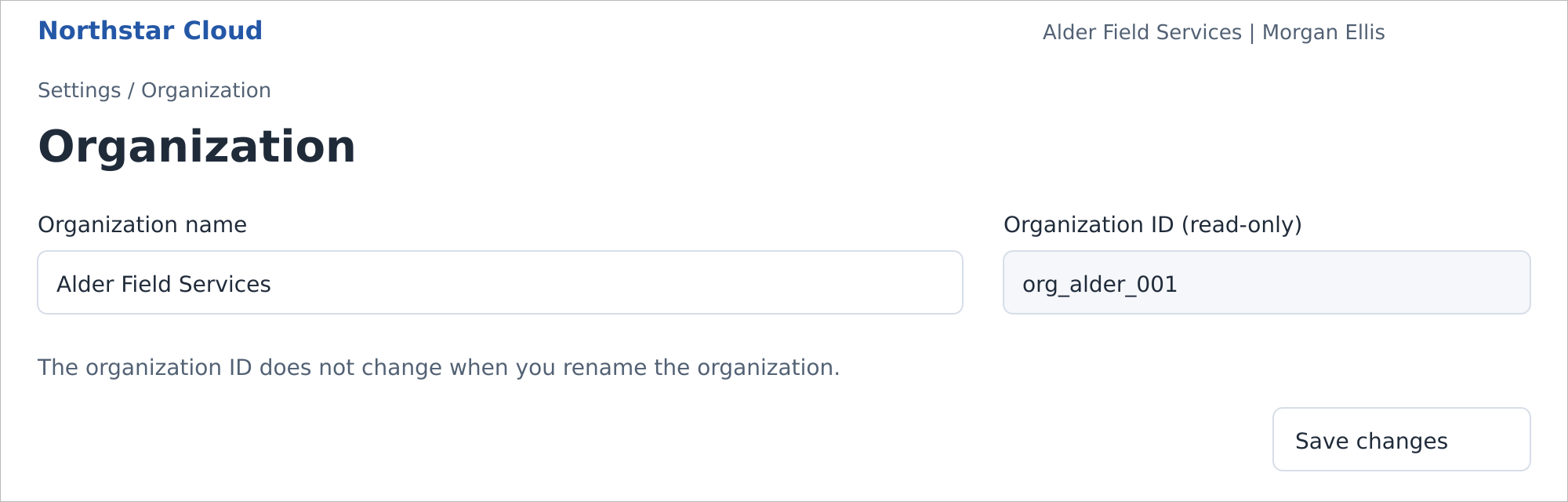
Organization settings with an editable name and read-only ID. Northstar Cloud 1.0 — fictional product mockup.
The updated name appears throughout Northstar. Changing the name does not change the organization ID. Save changes is unavailable until you change a value.
Prepare for Onboarding
Choose how colleagues will sign in before sending invitations. Password sign-in is available by default. If you plan to require single sign-on (SSO), configure and test the connection first.
- Review Roles and Permissions and decide which colleagues need administrative access.
- If you use an identity provider, follow Configure SSO to test and enable the connection.
- Review Configure MFA to decide whether to require MFA for Members who sign in with a password.
- Follow Invite Your First Users. Use the same email address that your identity provider supplies if the person will use SSO.
- After users accept their invitations, follow Create and Manage Teams to organize them.
Retain Owner Access
An organization must retain at least one active Owner. Invitations cannot assign the Owner role. After a colleague activates their account, an existing Owner can assign that role through user details.
Owners retain password sign-in with mandatory local MFA even when SSO is required. Keep your recovery codes available so you can use this recovery route if the identity provider is unavailable.
Dates and Times
Activity timestamps and report date ranges use UTC. There is no organization timezone setting.
Related guides: Invite Your First Users; Roles and Permissions; Configure SSO; Configure MFA.