
Teams organize users without granting permissions. A user can belong to more than one team, or none. Teams have no separate owner, manager, or role.
Before You Begin
You must be an Owner or Administrator. Users must be Active before you can add them. Invited users must accept their invitations first.
Create a Team
- Select Teams in the sidebar, then select Create team.
- Enter a Name of 2–60 characters. The name must be unique; capitalization and surrounding spaces do not distinguish names.
- Optionally, enter a Description of up to 200 characters.
- Select Create team.
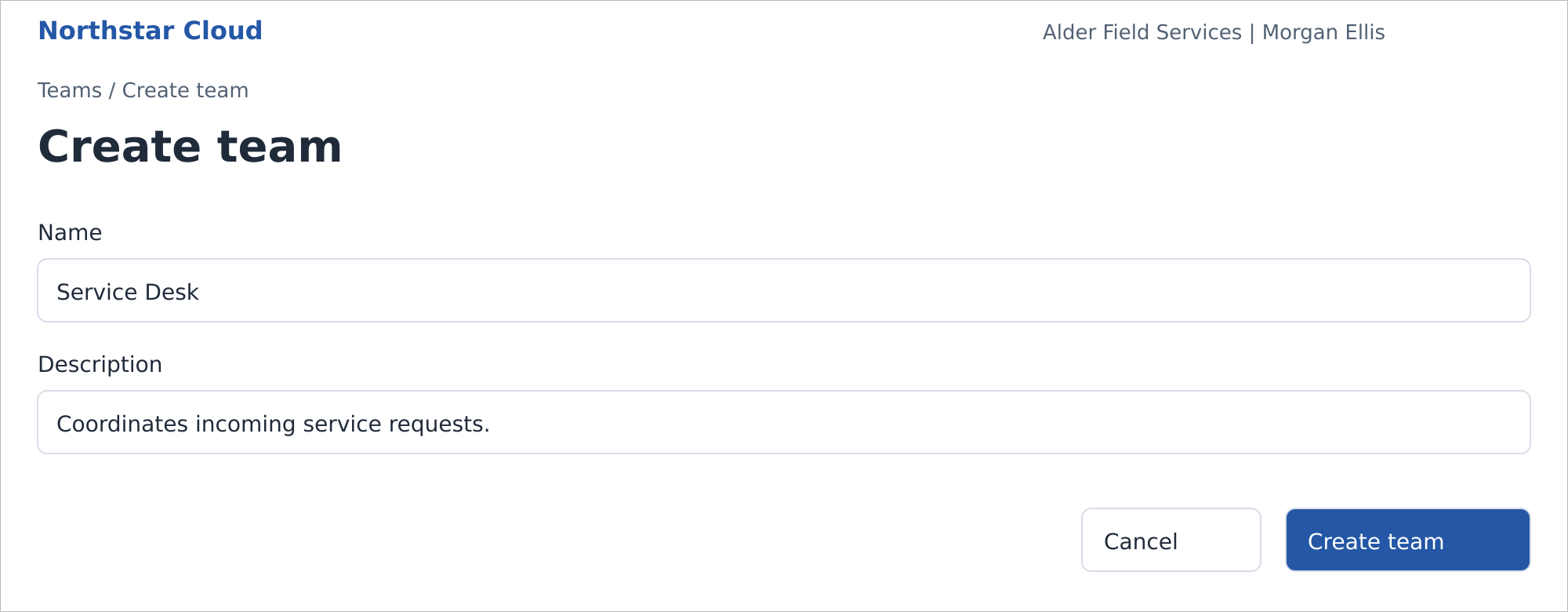
Create a team with a name and optional description. Northstar Cloud 1.0 — fictional product mockup.
The team is created without members. Add users from its details page.
Add or Remove Members
- On Teams, find the team using Search teams, then select its name.
- Select Add members.
- Select the active users to add, then select Add members.
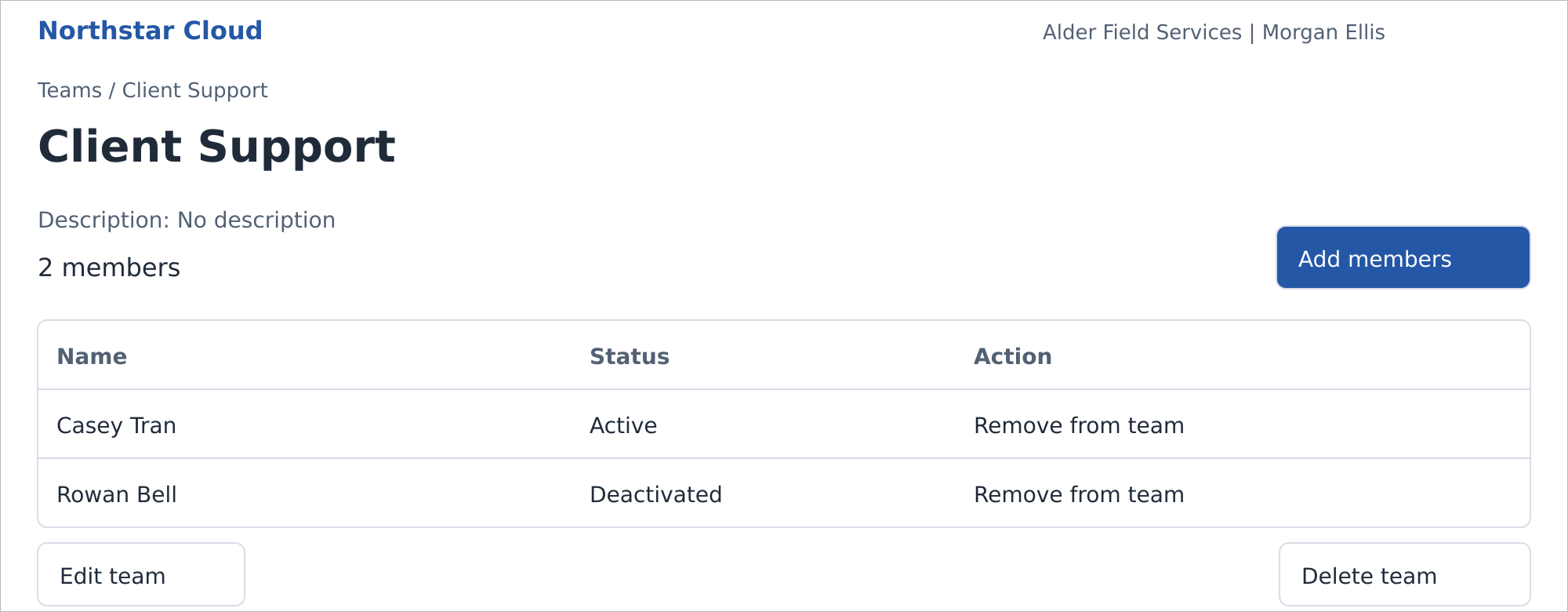
Client Support includes one active and one deactivated member. Northstar Cloud 1.0 — fictional product mockup.
The membership list shows each user’s status. If a member is later deactivated, they remain in the team and its member count. Deactivation does not remove the membership.
Remove a Member
- Open the team’s details and find the person in the membership list.
- Select Remove from team for that person.
- Check the person and team in the confirmation, then select Remove from team.
Removing a membership does not deactivate the account or change its role. Active users receive membership emails if their personal Team membership changes preference is on.
Edit a Team
- Open the team’s details and select Edit team.
- Update Name or Description. The same length and unique-name rules apply as when creating a team.
- Select Save changes.
Delete a Team
Deleting a team removes all of its memberships. It does not delete or deactivate the user accounts, and it does not change their roles.
- Open the team’s details and select Delete team.
- Review the team name and the effect on its memberships.
- Confirm by selecting Delete team.
Active users whose membership-change emails are on receive a removal email. Deactivated users receive no optional emails, and those missed events are not sent after reactivation.
If You Cannot Add Someone
Check their status in Users. An invited user must accept first. A deactivated user must be reactivated before a new membership can be added. Existing retained memberships do not need to be added again.
Related guides: Manage Users; Roles and Permissions; Configure Notifications.